Expense Report (Extended View)
The Expense Report screen allows you to create, edit, save, and sign an expense report for a selected date range. Up to 35 days can be included on an expense report. The expense report includes line item entries that capture the expense and unit charges that you have incurred while performing work for the company. Expenses and unit charges include items incurred by and reimbursable to the employee or expenses or unit charges paid by the company on behalf of the employee.
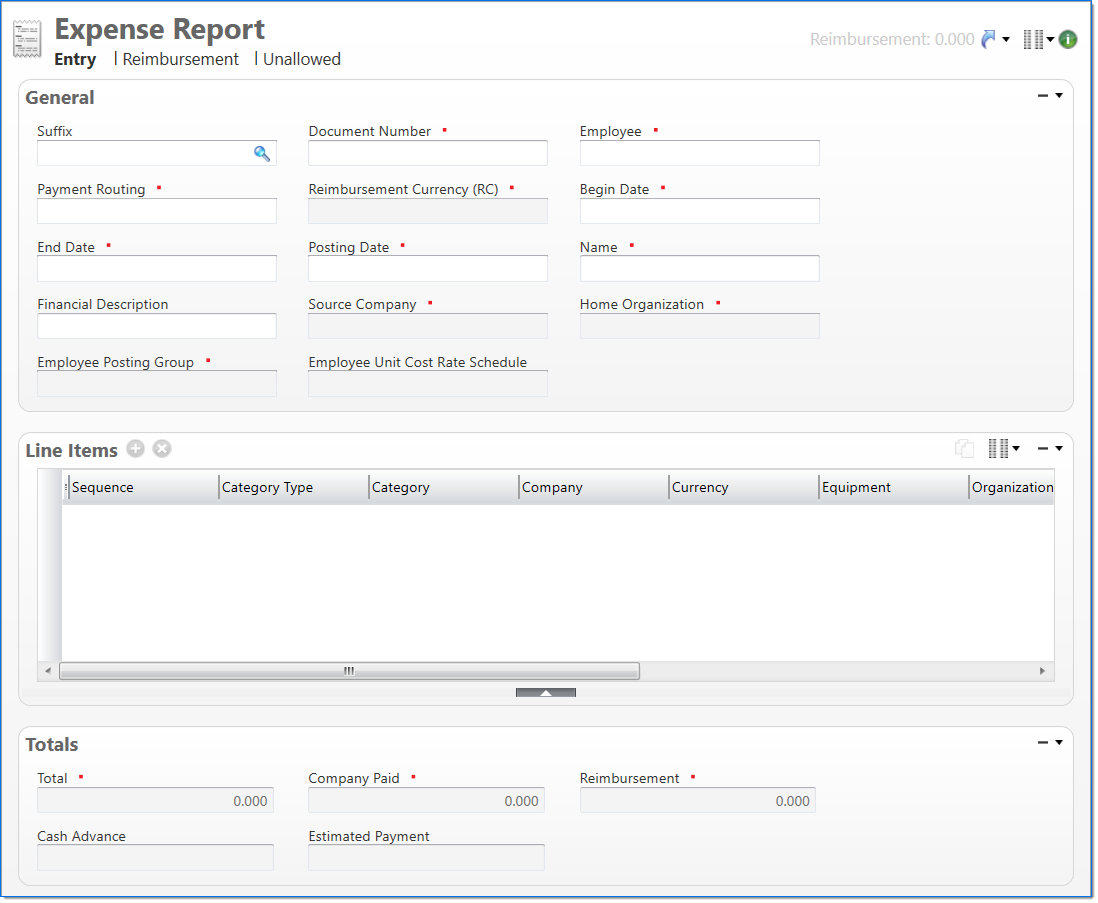
The Extended view includes three tabs:
- Entry: The Entry tab allows you to enter your expense report line items.
- Reimbursement: The Reimbursement tab allows you to review a list of your entered line items and their reimbursement amounts.
- Unallowed: The Unallowed tab allows you to review a list of your entered line items and mark either or part or all of the amount as unallowed. The unallowed portion will not be posted to the project. This does not impact the reimbursement amounts.
General
In the General area, enter general information about the expense report.
| Field | Description | |
|---|---|---|
| Suffix |
Enter or select any active input document suffix that is available for the current document type. This can be used in reports to select or sort documents. |
|

|
Document Number |
Enter a unique document number to identify this document. This field automatically prepopulates and be read-only if an auto-counter has been defined for this type of document. |
|
|
Employee | Enter or select an active employee. This is the employee that will be eligible for the reimbursement amount. |
|
|
Payment Routing | Enter or select the employee payment routing associated with the expense report. This determines the employee's payment method and mailing address used for payments. |
|
|
Reimbursement Currency (RC) |
Displays the currency for the reimbursement. This is the currency of the selected Employee. Once the document is created, this becomes the document currency and does not change even if the employee's currency is updated. |
|
|
Begin Date | Enter or select the begin date. This is the first date for charges on the expense report, and it must be less than or equal to the End Date. This value cannot be null if line items have been entered. |
|
|
End Date | Enter or select the end date. This is the last date for charges on the expense report, and must be equal to or greater than the Begin Date. This value cannot be null if line items have been entered. |
|
|
Posting Date |
Enter or select the posting date. This date is used to associate the document with a posting period. The posting date must allow this document type as an input and its posting period must be in an Open or Pending Close stage. This will default to the first posting date that is greater than or equal to the End Date of the expense report. |
|
|
Name | Enter a name to identify the expense report. |
| Financial Description |
Enter text to further describe the nature of the transaction beyond the typical posting data. When the general ledger and subsidiary records are created, this description is used as the financial description for each line item unless overridden in the Line Items area. This field defaults based on the Expense Report Name , but it can be overwritten. |
|
| Source Company | Displays the home company of the selected Employee. Once the document is created, this becomes the Source Company and does not change even if the employee's home company is updated. | |
| Home Organization | Displays the home organization of the selected Employee. Once the document is created, this becomes the Home Organization and does not change even if the employee's home organization is updated. | |
| Employee Posting Group | Displays the selected employee's assigned posting group. Once the document is created, this becomes the Posting Group and does not change even if the employee's posting group changes. | |
| Employee Unit Cost Rate Schedule |
Displays the selected employee's assigned unit cost rate schedule. This is used to determine the cost of employee paid units. |
|
Line Items
In the Line items area, add rows to enter information about what is charged on the expense report. This includes information about the type of charge and the project WBS where it will be charged. The Line Items area has a Daily view and List view.
Daily View
The Daily view allows you to enter line items in a simple list format based on a date. This is the default view for the Line items area.
|
Note: Line items entered in Daily view that have the same selections but for different days will be displayed as separate line items in List view. |
| Field | Description | |
|---|---|---|
| Sequence | Displays the line item's sequence in the list. | |
| Category Type |
Select the type of line item. Once line item details are entered, the type cannot be changed. The following options are available:
When there are multiple line item details, this field is read-only. |
|
|
|
Category |
Enter or select an active expense report category. When the Category Type is Employee Unit, the following must be true for a category to be available for selection:
When the Category Type is Company Unit, the following must be true for a category to be available for selection:
When the Category Type is Company Expense or Employee Expense, the Company must be defined in the category. When there are multiple line item details, this field is read-only. |
|
|
Company |
Enter or select an active company. It must be the source company or be in an intercompany relationship with the source company. For a unit type line item where Equipment is not selected, the company must be defined for the unit's posting group. When Equipment is selected, the company must have been defined for the equipment's posting group. For expense type line item, the company must be defined for the related expense report category. When there are multiple line item details, this field is read-only. |
|
|
Currency |
Enter or select an active currency that has an effective currency rate. This is read only when the Category Type is Employee Unit or Company Unit. Employee units default to the expense report currency. Company unit default to the source company's currency. When there are multiple line item details, this field is read-only. |
| Equipment |
Enter or select an active equipment code. This is used for company units that require equipment. The home company of the selected equipment must match the expense report's source company. In addition, the unit type of the category's unit must be set up on the equipment's unit type. When there are multiple line item details, this field is read-only. |
|
|
|
Organization |
Enter or select an active organization that belongs to the selected Company. When there are multiple line item details, this field is read-only. |
| Project |
Enter or select an active project. This field is necessary when the charge is project related. When the Category Type is Company Unit:
When there are multiple line item details he posting type is only enabled for non-project expenses, this field is read-only. |
|
| Task |
Enter or select an active task. This field is available and required once a Project has been selected. When there are multiple line item details or the posting type is only enabled for non-project expenses, this field is read-only. |
|
|
|
Date | Enter the date for the line item. This defaults to the date of the previous line item or to the Begin Date. |
|
|
Entered |
Enter one of the following:
|
In addition, you can display  optional columns. The available columns depend on the tab you have selected.
The Totals at the bottom of the Line Items area includes a total sum of all input values. These values are hash totals for the day and include amounts in currencies and quantities for different units.
List View
The List view allows you to enter line items into a complex list, which is divided into three main sections: line item detail, amounts, and totals.
| Field | Description | |
|---|---|---|
| Line Item Detail |
The line item detail section allows you to enter line items to use to charge expenses. For each line item, select the detailed information for the line item. For a detailed description of the fields, see |
|
| Amounts |
The amounts section allows you to enter or view amounts for each line item and day covered by the expense report. The displayed dates are based on the dates entered in the Begin Date and End Date fields for the expense report. For each tab on the expense report, the amounts sections will have a default column that will always be displayed. In addition, there are optional columns that are available to be displayed. When the default column is the only column displayed, the column will not display a heading. From the Entry tab, the default column is the Entered column. This field allows you to enter:
In addition, you can display additional From the Reimbursement tab, the default field is the read-only Reimbursement field, which displays the reimbursement amount for each unit or expense charge. In addition, you can display additional From the Unallowed tab, the Entered and Unallowed fields display by default. The Unallowed amount can be zero, but it cannot exceed the Entered amount. In addition, you can display additional |
|
| Total |
The total section allows you to view total amounts for each line item. |
|
Line Items - Additional Details Split Pane
At the bottom of the Line Items area, click the expand  button to display the additional details split pane. This pane includes two sections, which allow you to enter details and VAT information for the selected line item entry on the expense report. These sections are tied to the selection of a cell in the Amounts section of the Line Item area. The split pane is only available when a value is entered in the cell, and if the value in the cell is deleted, this information is also deleted.
Details
In the Details section, enter additional information about a line item entry. Any descriptions entered are available throughout the lifecycle of an expense report and in later reporting. When a description is added to an amount field, a red marker is added to the top, right-hand corner of the cell. For more information, see Add and View Expense Descriptions.
| Field | Description | |
|---|---|---|
| Receipt Number | Enter the receipt number that corresponds with the line item. Maximum length is 32 characters. | |
| Financial Description | Enter text to further describe financial information about the line item beyond the typical posting data. If no description is entered, the Financial Description entered in the General area is used. This description is available in financial reporting. | |
| Project Description |
Enter text to further describe project information about the line item beyond the typical posting data. This field is available only if the account subsidiary type is Work in Progress, or the account posting type is Chargeable or Non-Chargeable Task. This description is available in project reporting. |
|
VAT Detail
In the VAT Detail section, enter VAT tax detail for a line item entry. Multiple VAT line items can be entered for each expense or unit line item. If the Entered field is updated, the VAT tax amounts are recalculated. If the Post Tax equals the line item amount, Pretax will be set to zero and the tax amounts will be recalculated.
For expenses, the sum of the VAT tax amounts cannot exceed the line item amount.
| Field | Description | |
|---|---|---|
| VAT Line Items |
The VAT line item detail section allows you to enter VAT codes and their amount from the line item.
In addition, you can display additional |
|
Totals
The Totals area displays total amounts based on the line items entered for the expense report.
| Field | Description | |
|---|---|---|

|
Total |
Displays the total from the Line Items area. For units, cost is calculated by multiplying the Quantity by the cost rate. The cost rate is determined by the cost rate schedule assigned to the employee or company. If the unit is not included in the cost rate schedule, the cost will be zero. |
|
|
Company Paid | Displays the total from the Line Items area that are company paid. |
|
|
Reimbursement |
Displays the total from the Line Items area that are employee paid. In addition, the Reimbursement amount is displayed in the top right corner of the screen. |
| Cash Advance | Displays any outstanding cash advances to the employee. This field only displays a value until the expense report has been posted and is in a Final state. | |
| Estimated Payment | Displays the projected amount due to the employee. This is calculated as Reimbursement minus Cash Advance. This field only displays a value until the expense report has been posted and is in a Final state. | |